Manage audio and video system settings
Updated October 8, 2026
On this page
If you already successfully gave permission and are connected, but you are still facing issues, please refer to this article. The following article focusses on joining via a computer. For joining via mobile phone, please check out this article instead.
If Demodesk cannot access your microphone or camera, this is, in most cases, a permission issue. Based on your browser, system, or device, there are a few things you can do to get everything working again!
⚡Pro Tip: Run a quick diagnostic here to identify what could cause the issue or simply to ensure that everything is running smoothly before your meeting.
There can be three sources for your issues:
Your System
Some device systems allow you to block microphone and camera access completely. Please ensure your system allows your browser to access the camera and microphone. We will tell you how to do that!
Windows
If you are using a Windows computer, please make sure to check your System Privacy:
-
Open Settings
-
Click Privacy
-
Click Camera/Microphone
-
Enable the browser to access camera and microphone
-
Restart the browser
OS (e.g. MacBook)
If you are using an iMac or a MacBook (OS device), please make sure to check your System Preferences. Click here to go there directly.
-
Open System Preferences
-
Click Security and Privacy
-
Click Privacy
-
Click Camera/Microphone
-
Enable browser to access camera and microphone
-
Restart the browser
Your Browser
Please choose the browser you are using to find the help you need.
Your camera or microphone
Lastly, the issue can be due to your camera or microphone. For the microphone, Demodesk shows Another application uses your microphone. Please close it. For the camera, the error message can look like this:
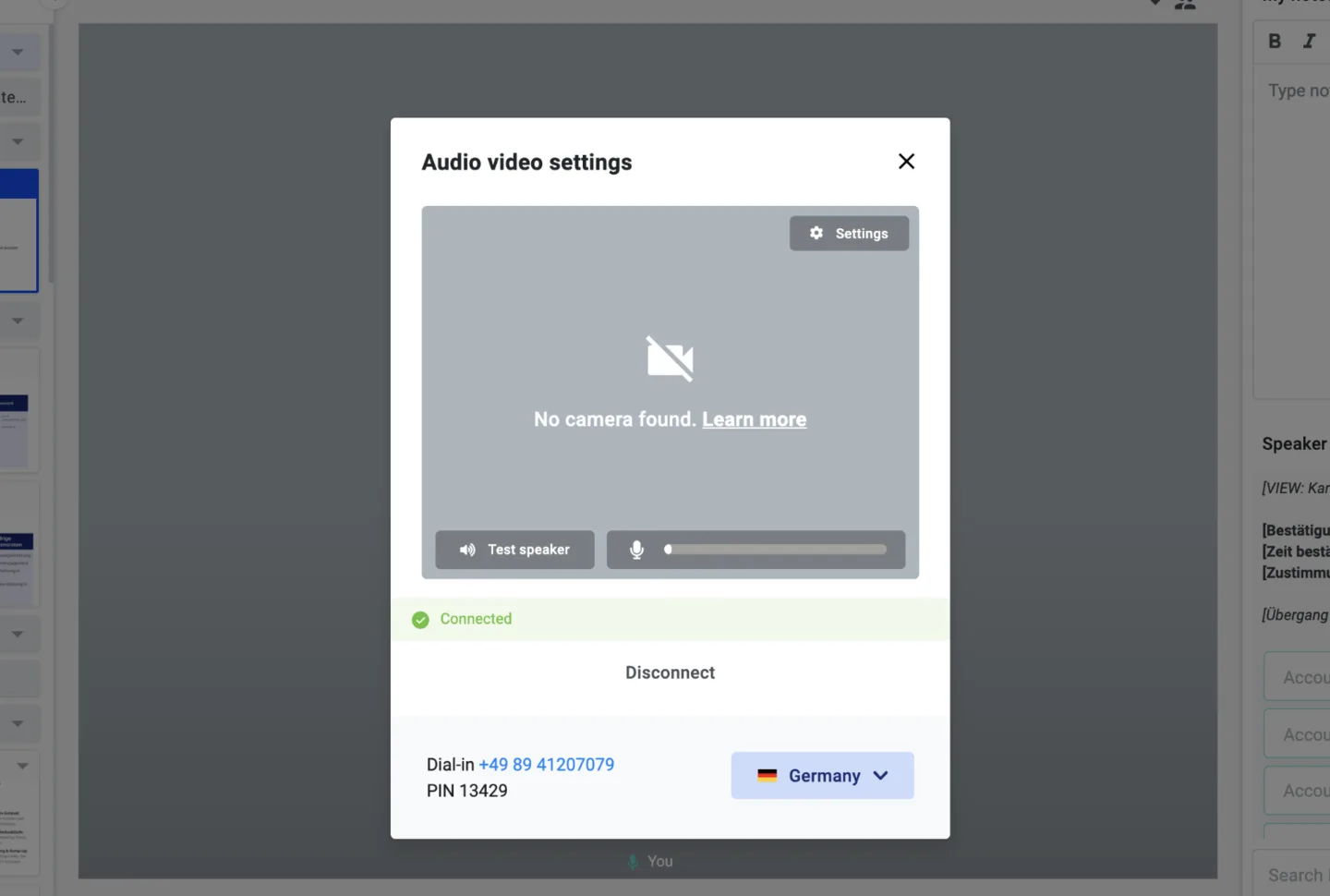
When you receive a message like this, there are two simple ways you can try to solve the problem:
- Make sure no other application or browser tab uses your camera or microphone (e.g. Teams, Zoom, Loom). You need to close them. Then select your device again in Audio video settings.
- Make sure you gave permission to access the camera and microphone. Here is your guide.
- In the browser
- In the system settings (click here for Apple devices)
- In the operating system
- In your firewall
- Restart your browser
- Restart your computer
All these ways require you to rejoin the meeting, and now you should be ready to go!
If Demodesk says your microphone is blocked
When you join, your browser asks for access to your microphone. If you leave that question unanswered for a while, or if access is blocked, Demodesk shows Your microphone is blocked by the browser. You do not need to rejoin the meeting.
- Go back to the browser prompt and click Allow. Demodesk waits for your answer, so a late Allow still works and your setup continues on its own.
- If the prompt is no longer on screen, click Try again on the setup screen to ask for access once more.
- If access stays blocked, click Having trouble? and choose Dial-in with phone to join with your phone instead.
If the message says Your microphone is blocked by the system instead, follow the steps under Your System first and then click Try again.
Ensure you use the most recent browser for the best performance and meeting experience. See the following links to update Google Chrome, Mozilla Firefox or Microsoft Edge.
Related articles
More in this category
Still need a hand?
Our support team answers in the app chat, or at support@demodesk.com.