All you need to know for audio and video setup
Updated October 8, 2026
On this page
- 1. Audio onboarding
- 2. Manage audio and video settings
- 3. Start a meeting without audio and video
- 4. How can I change my microphone and camera in Demodesk?
- 5. How can I change my camera quality
- 6. How can I call someone on the phone from a meeting
- List of countries supported for audio conferencing
- How to use virtual backgrounds in Demodesk
During your meeting, audio and video might be one of the essential features. Therefore we designed this article to ensure the best preparation possible for you and your guest. This is everything you need to know about setting up your audio and video:
- Audio onboarding
- Manage Audio and Video settings
- Start a meeting without audio and video
- How can I change my microphone and camera in Demodesk
- How can I change my camera quality
- How can I call someone on the phone from a meeting
- How to use virtual backgrounds in Demodesk
1. Audio onboarding
Joining a Demodesk meeting with audio is easy, check out this article for more information.
Additionally, we have created a guide that will help you with some audio troubleshooting steps. Feel free to save it, to be always prepared.
2. Manage audio and video settings
If Demodesk cannot access your microphone or camera, it is a permission issue in most cases. Based on your browser or system, there are a few things you can do to get everything working again!
Hint: Ensure you use the most recent browser for the best performance and meeting experience. See here how to update Google Chrome, Mozilla Firefox, or Opera
3. Start a meeting without audio and video
When creating your Event Type, you can choose between the following conferencing options, determining the audio settings for your meeting.
- Full (computer and phone): both audio and video are enabled at the start
- Phone dial-in only: you will be able to join the meeting only via dialing in
- Disable audio: the microphone will not be activated by default
If you wish to start without the audio, then select the option "Disable audio" in your Event Type. You will still have the option to enable the audio function later on during a meeting.
Phone dial-in is especially helpful if your customers use older browsers and don't regularly hold meetings on their computers. So if you already know your customer's setup, you can adjust it to their preferences here.
Pro Tip: Don't worry, during the onboarding of a new meeting, you can always decide to disable the microphone and the camera devices of your computer.
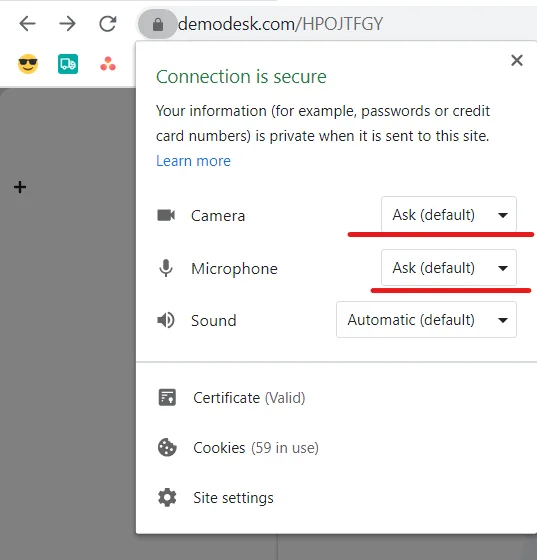
Moreover, you can set your preferred choice in your browser permissions by clicking on the padlock next to the URL. This way, you will be asked to enable your devices every time you start a new meeting.
4. How can I change my microphone and camera in Demodesk?
In the meeting
Open the menu next to the Microphone or Camera button at the bottom of the meeting and pick the device you want. You can pick your Microphone, Speakers and Camera the same way on the audio setup screen before you join.
Demodesk remembers the devices you pick and selects them again the next time you join a meeting, so you do not have to choose your headset or external camera before every call. A few things to keep in mind:
- Your choice is stored in the browser you are using, so another browser or another computer starts from its own defaults.
- Only devices you pick yourself are remembered. When Demodesk switches you to another device on its own, for example after you unplug your headset, your remembered choice stays as it is.
- If a remembered device is not plugged in when you join, Demodesk uses your browser default for that meeting and keeps your choice for the next one.
Chrome
In Chrome, go to the open meeting and click on the camera icon in your address bar. There, you can go to Manage and set the microphone or camera Demodesk should use. After you have made your changes, go back to Demodesk and refresh the page.
Firefox
In Firefox, you are asked right away which microphone or camera you want to use in Demodesk. If you wish to change these settings in a running meeting, simply reconnect to the webcam or audio.
5. How can I change my camera quality
In a Demodesk meeting your camera is sent at 960x720 by default. You can pick a different quality yourself:
- In the Demodesk dashboard, click on your profile in the top right corner and open Personal preferences.
- In the menu on the left, click Preferences under Personal and go to the Meeting preferences section.
- Open the Camera resolution dropdown and pick 640x480, 960x720 (default) or 1440x1080 (Full HD).
- Click Save.
A few things to keep in mind:
- Your guests join with the same camera quality you set as the host, so you only need to change it in one place.
- On phones and tablets the camera always stays at 640x480, whatever you picked here.
- A higher resolution uses more upload bandwidth. When your connection allows it, Demodesk sends your video in several quality levels at once, so everyone in the meeting gets the best picture their own connection can handle.
If your video looks blurry or keeps freezing, a weak connection is the more likely cause than this setting. Have a look at our unstable Wifi troubleshooting article.
6. How can I call someone on the phone from a meeting
This feature is part of the business plan. Please contact Demodesk support if you are interested in using it:
To start a dial-out in an open meeting go to the participant list and click on call someone. Now, a popup will appear to enter the number to be called and establish the connection by clicking on call. To end the call, simply go to the participant list and remove the number from the list.
Important: Please include the international prefix to your phone number
List of countries supported for audio conferencing
When dialing in via phone, a PIN code is required to enter the meeting. You can find this PIN either in the calendar invite or when opening the meeting link and selecting dial-in via phone. Click here to read more about phone dial-in and which countries are supported.
How to use virtual backgrounds in Demodesk
Bored of your living room as a background for all your Demodesk meetings?
Related articles
More in this category
Still need a hand?
Our support team answers in the app chat, or at support@demodesk.com.