Round robin assignment logic in Demodesk
Updated October 12, 2026
On this page
With our round robin, you can combine the availability of multiple team members in one scheduling page. When an invitee selects your round robin event, all they need to do is pick a day and a time that works for them. The event will thus be assigned randomly to a team member who is available at the time.
These events are perfect for:
- Connecting leads with sales reps for intro calls and demos
- Connecting new customers with the client services team for onboarding and training
- Connecting existing customers with a member of the support team
- Connecting candidates with recruiters for phone screenings
How to set up a round robin Meeting type
Within your Meeting type, you will be able to select your preferred option: strict or flexible round robin.
Logic explained
The booker selects an available time slot, and the algorithm makes all the magic happen. Here is how it works:
-
The algorithm checks which of your team members is available then, team members count as available, if:
- they do not have any meetings at that specific time
- their daily demo limit is not exceeded
- their scheduling limit for that day and particular Meeting type is not exceeded
- their weight is not equal to zero (more about that later)
-
It thus counts how many meetings each rep already has with the selected Meeting type within the counting window you choose on the Meeting type (under Team assignment > Counting window):
- Weekly (default): the count resets every Monday. The week starts Monday 00:00 and ends Sunday 24:00.
- Monthly: the count resets on the first day of each month, so fairness is balanced across the whole calendar month.
The window is based on the date of the meeting being booked, not today's date. Meetings for this Meeting type count, and cancelled meetings and no-shows are excluded. If you put several Meeting types into one shared rotation, their meetings count together, see the next section.
-
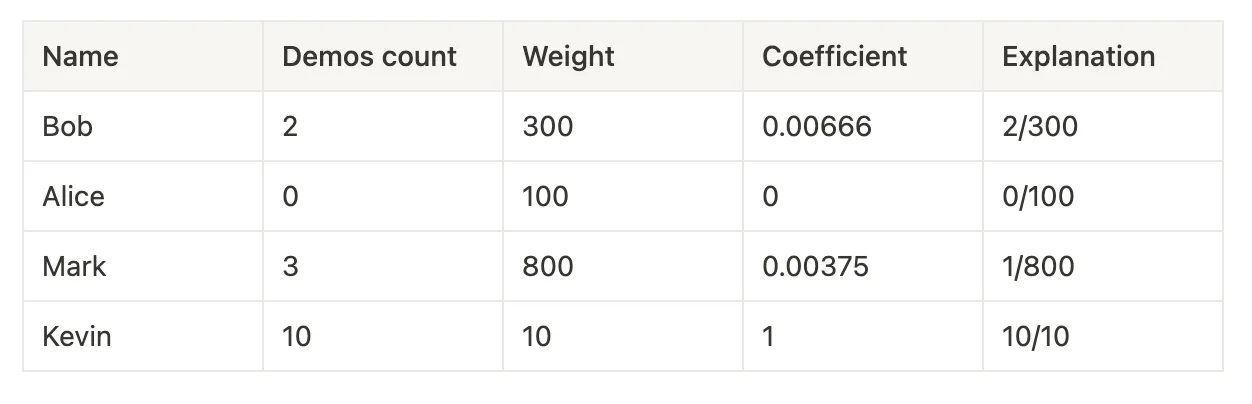
It then calculates the coefficient for every user. The formula (k = demosCount / weight) divides the amount of already scheduled meetings with a weight specified for each user in the matrix (you can find an example below).
-
Finally, the user with the minimum value gets the meeting. If two have the same value, we choose randomly.
Example:
In this case, Mark will get the meeting because Alice does not count due to her weight.
How to count meetings across several Meeting types
Teams often run the same conversation in more than one format, for example a first meeting online and a first meeting by phone, each as its own Meeting type. Every Meeting type keeps its own round robin count, so a rep who already took many online first meetings can still be picked first for the phone one.
A shared rotation puts those Meeting types on one count. The meetings a host has across all Meeting types in the rotation are added up when Demodesk picks the next host.
- Open the company Meeting type you want to start from.
- Go to Team assignment.
- Open Shared rotation and pick the other Meeting types that should share one count with this one.
- Save the Meeting type.
Example with three formats:
You run the same first conversation in three formats, each as its own company Meeting type in the same group: First meeting online, First meeting by phone and First meeting on site. You open First meeting online and pick the other two under Shared rotation, so the three of them form one rotation.
In the current counting window Dana has 3 online, 1 by phone and 0 on site, which is 4 meetings in the rotation. Ben has 2 online, 0 by phone and 1 on site, which is 3. Both have a weight of 100% in the assignment matrix. The next first meeting goes to Ben, whichever of the three Meeting types the invitee books, because Demodesk compares the totals of the rotation and not the count of a single format. Without the shared rotation, Ben would be behind Dana for the online format but ahead of her for the phone one, and the formats would drift apart.
Good to know:
- Only company Meeting types can share a rotation. Personal Meeting types have no Team assignment settings.
- The Meeting type needs a group. Shared rotation stays greyed out as long as no group is selected.
- All Meeting types in one rotation have to be in the same group, and a Meeting type can be in one rotation at a time. A Meeting type that already belongs to another rotation is listed as (in another rotation) and cannot be picked until you remove it there.
- A group can hold more than one rotation, for example one for all first meetings and one for all follow-ups.
- The Counting window and the weights in the assignment matrix come from the Meeting type that is being booked. A daily limit per host for a Meeting type still counts per Meeting type, so it only counts the meetings of the Meeting type it is set on.
- Meetings that are already booked inside the counting window count as soon as you save the rotation, so the balancing takes effect right away.
- To stop sharing, remove all Meeting types from Shared rotation and save. The field then shows Not shared with other meeting types again.
How do I make round robin count meetings across several Meeting types?
Open one of the company Meeting types, go to Team assignment and pick the others under Shared rotation. They all have to be in the same group. Demodesk then adds up the meetings a host has across every Meeting type in that rotation before it picks the next host, so one rep no longer collects the first meetings of several formats in a row.
What is the difference between strict and flexible round robin?
If you wish to allow your Bookers (team members) to choose the meeting host, the flexible round robin is what you are looking for. All you have to do is select that option in the related Meeting type. With flexible round robin, you have the flexibility as a booker to choose the best host according to the meeting's topic. For example, you can book for a sales team member that represents different regions when scheduling with a new client.
Does round robin allow leads to choose the host?
No, the contrast between strict and flexible round robin pertains solely to the internal scheduling process within the Demodesk Scheduler. When opting for flexible booking, you have the freedom to designate a team member as the host. Conversely, in the case of strict round robin, this option is not available. Importantly, external parties such as customers or prospects utilising the booking link are unable to directly choose the host for their meetings, regardless of the chosen method. You can, however, use routing forms to enable host selection.
Related articles
Still need a hand?
Our support team answers in the app chat, or at support@demodesk.com.