Integrations health check
Updated October 1, 2026
On this page
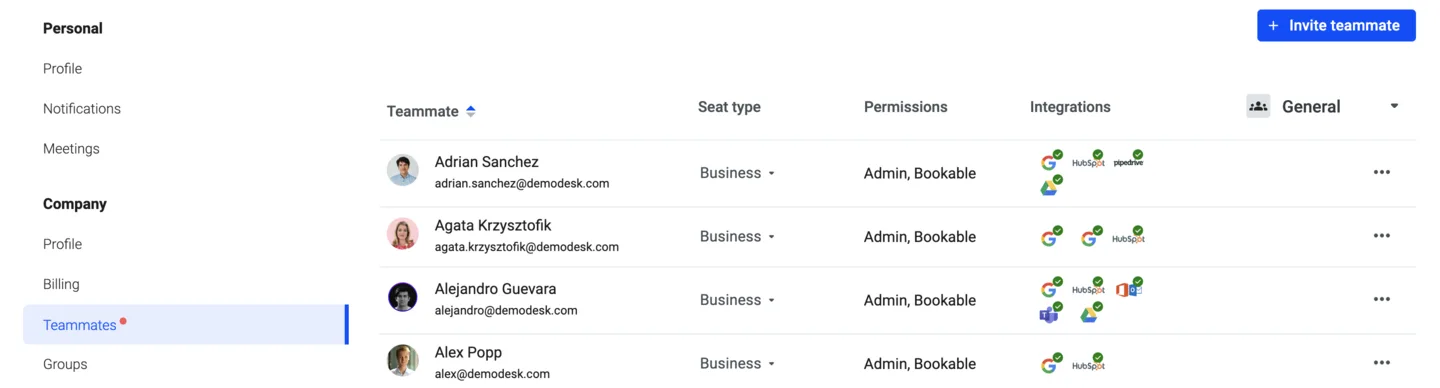
As an admin, you can see your colleagues' integrations status in the Employees settings. It helps you to ensure that they are able to schedule meetings, automated messages are being sent out, and all information is being synced to your CRM.
To find your colleagues quickly, you can filter by first name, last name, or email. The status shows you their connected Integrations and also if there are some errors. Simply mouseover the symbol e.g. Google Calendar, Google Drive, Outlook, Microsoft Teams for more information about the error and to resolve it.
Integrations audit logs
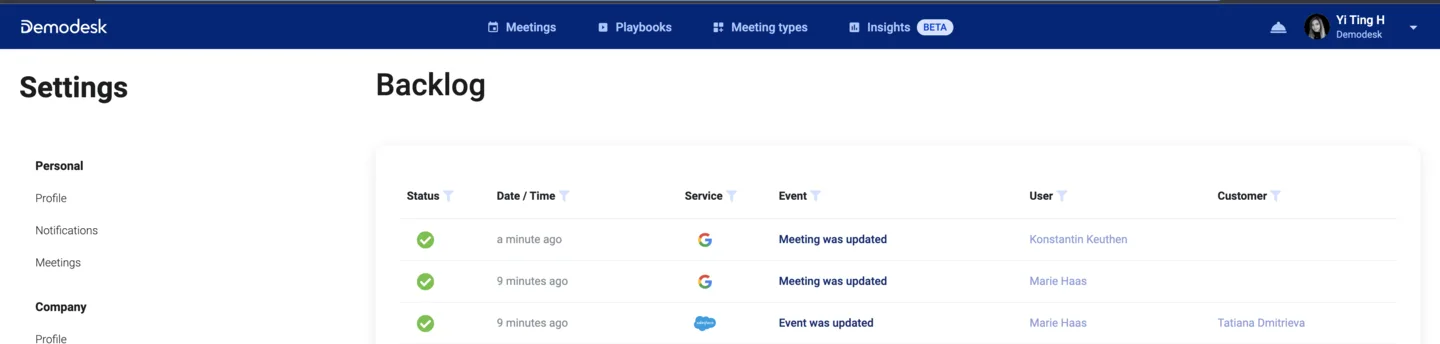
Demodesk has an overview page that helps to keep track of all integrated apps.
In there, we track and show all meetings and updates from Demodesk to connected email or CRM accounts.
You can filter for Errors or date and timeframes, as well as integration sources.
If you want to go into the details of a meeting, simply click on Meeting was updated to get all the data.
With the back sync of Gmail and Google Calendar, it is also possible to have full transparency between Demodesk and your calendar. If you wish to view when a meeting is scheduled, canceled, or even updated out of Google Calendar, everything will be listed in your audit logs.
Check out this article on common audit log errors and what they mean.
Control which integrations your team can connect
As a company admin you can decide which integrations people in your company are allowed to connect at all. For a blocked integration the Connect button stays visible but is disabled, with the note Disabled by your company admin.
- Go to Settings, then Integrations, then Connections.
- Scroll to the bottom of the page and open Advanced settings.
- Under Integration access, set each integration to Allowed or Blocked.
You can control Google, Office 365, Salesforce, HubSpot, Pipedrive, Zoom, Aircall and RingCentral. Each row also shows how many people in your company have that integration connected right now.
The last row, Integrations added in the future, decides what happens with integrations that Demodesk adds later. Set it to Blocked if you only want to allow the integrations you have switched on today.
Blocking an integration that people already use
When you block an integration, Demodesk asks you to confirm. If people are still connected, you can tick the extra option to delete those existing connections as well. Demodesk then disconnects those users and revokes their tokens in the background, which can take a few minutes. For Google and Office 365, the upcoming meetings that were imported from that calendar are removed too.
If you leave that option unticked, people who are already connected stay connected, and only new connections are prevented.
🌟 At least one sign-in provider has to stay allowed, so you cannot block both Google and Office 365 at the same time. Slack and Microsoft Teams are not part of these settings, because an admin connects them once for the whole company.
These settings apply to everyone in your company, including admins.
Related articles
More in this category
Still need a hand?
Our support team answers in the app chat, or at support@demodesk.com.