How do I reschedule or edit a meeting?
Updated October 14, 2026
On this page
This article provides an in-depth explanation of the process for rescheduling your meeting. Typically, there are two approaches you can choose from:
1. Use a Rescheduling Link
The first option is to provide your customer with a rescheduling link, allowing them to select their preferred timeslot by using the "Copy reschedule link" button. To access this feature, go to the meetings page, choose the three dots next to the respective meeting, click on "Reschedule," and then select "Copy Reschedule Link," as demonstrated below.
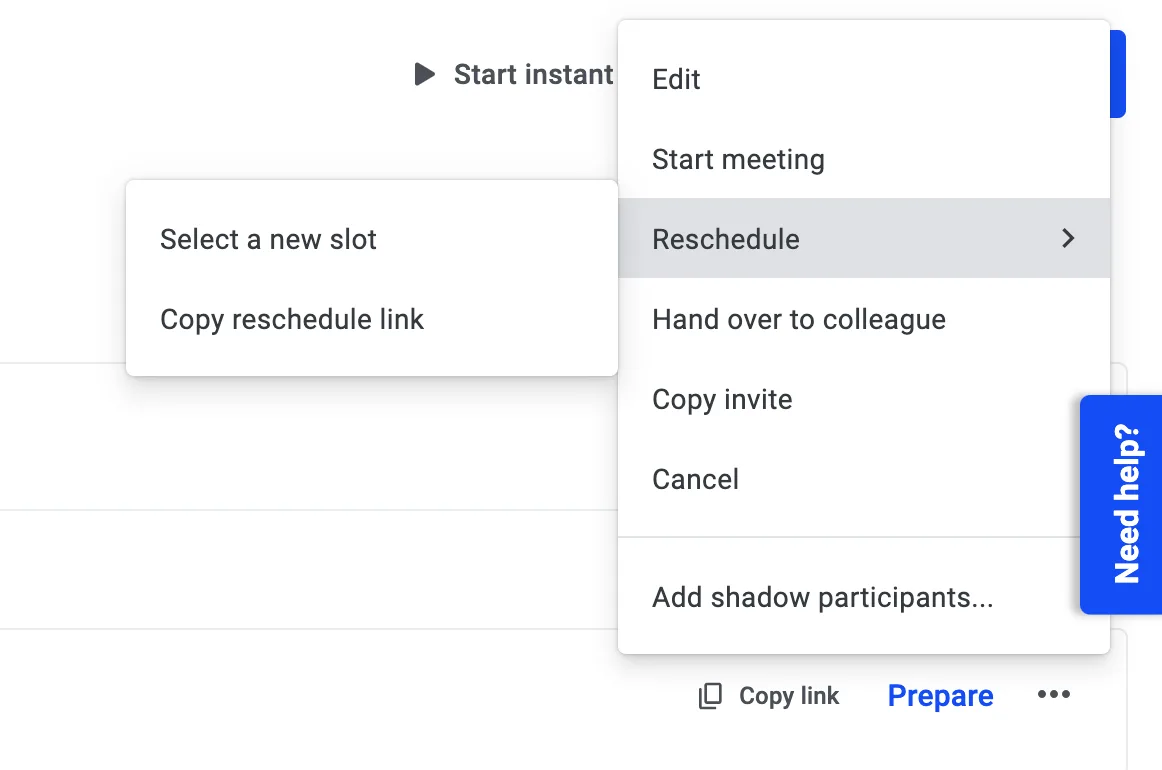
⚡Pro Tip: Should you desire to empower your guests with greater flexibility, consider incorporating the rescheduling token into your calendar description or email notification. By doing so, your guests can seamlessly reschedule the meeting from the calendar description or email notification itself, without requiring you to send them the link separately.
If the meeting has already taken place
The rescheduling link still works after the meeting date. What it does depends on the meeting:
- The meeting is still upcoming: the link moves it to the time your guest picks.
- The meeting has already ended, or it was canceled and already has a recording: the link books a new meeting at the time your guest picks. The meeting that took place keeps its own date and its recording.
- The meeting is running: it cannot be rescheduled through the link.
When a new meeting is booked this way, it goes to the same host if that host is available at the chosen time. If the host is not available, it goes to another available host, unless Reschedule with the same host is switched on under Rescheduling in the meeting type. The link your guest used stays valid, so using it again reschedules the meeting that was booked last.
2. Use the Scheduler
In order to modify the meeting date or time using your scheduler, take the following steps:
- Go to your Meetings Page
- Click on the 3 dots on the right of your desired meeting
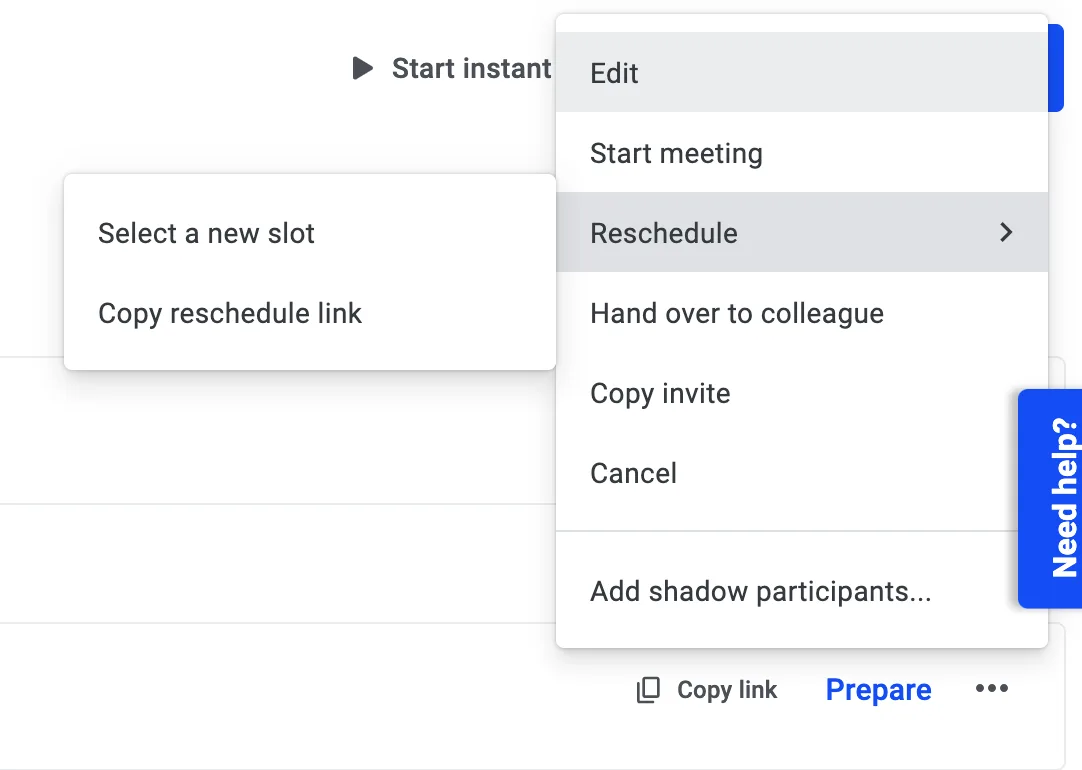
- Select Edit or Reschedule
- If you've chosen the option to reschedule, click on "Select a new slot" as demonstrated below to access the scheduler. Alternatively, if you click on "Edit," you will be directed to the edit meeting page. From there, you'll need to select the "Reschedule" button.
After accessing the scheduler, your availability will be displayed as depicted below. To view your availability in a calendar format (e.g. including your meeting names), simply click on the "Calendar" option located at the upper left corner. Additionally, you have the option to manually input a new date and time by accessing the lower left corner (see below).
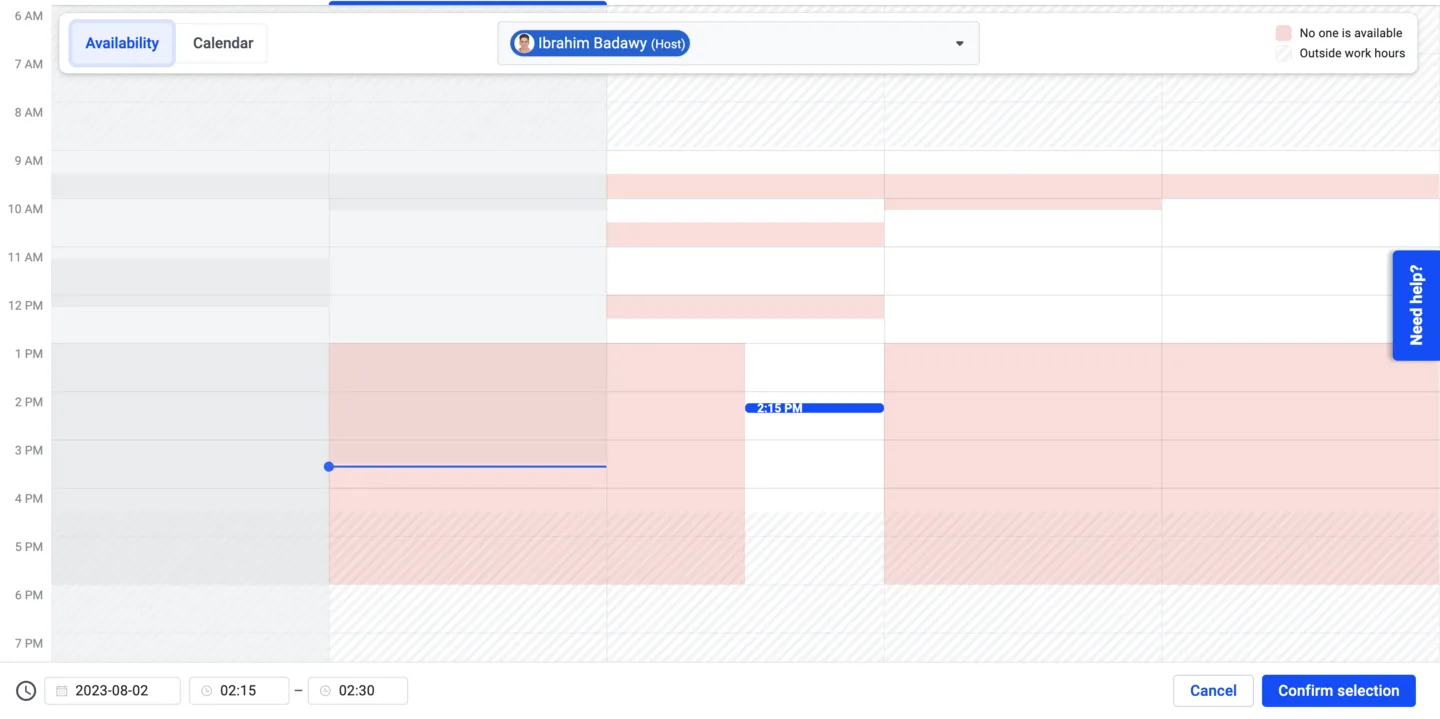
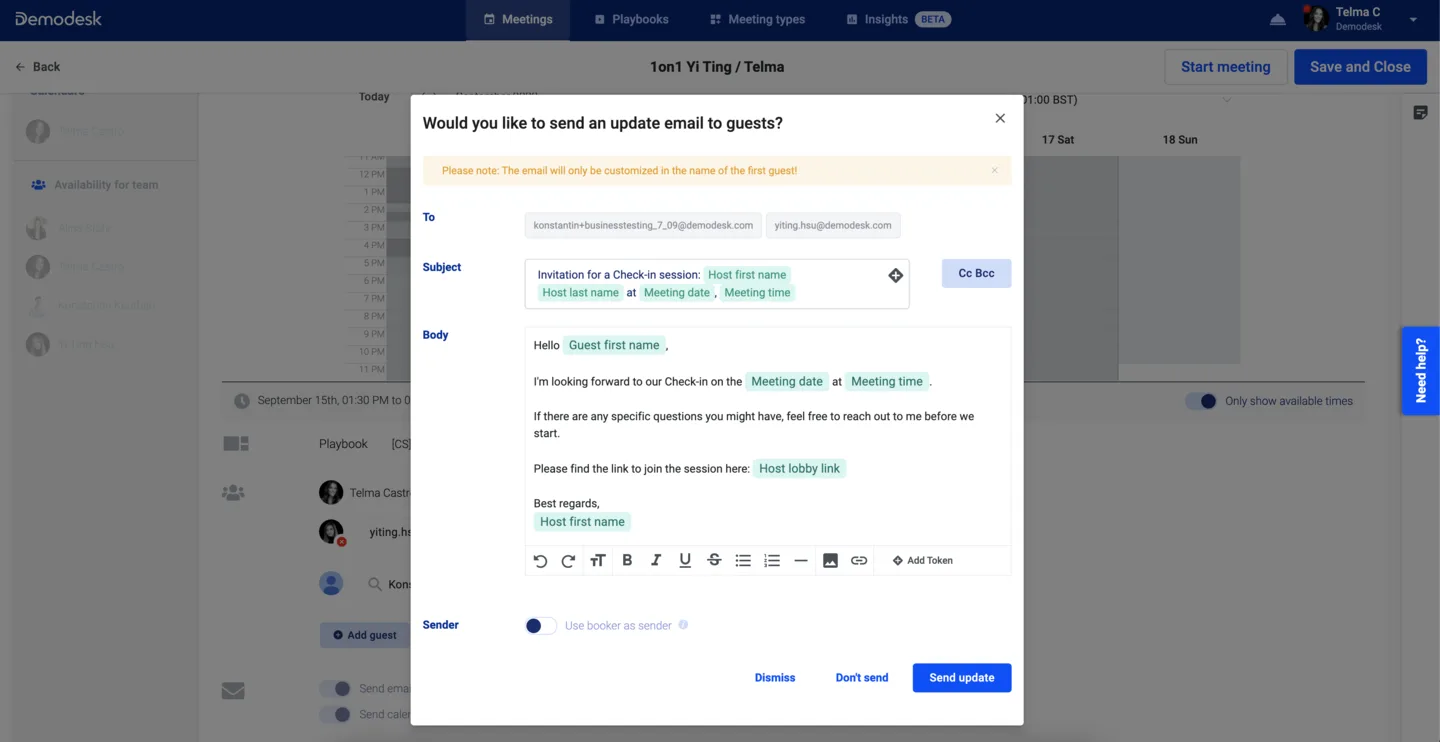
Once you've chosen the preferred new time, just click "Confirm Selection," and after reviewing the details on the edit page and finding them satisfactory, click "Save and Close." A notification in the form of a pop-up will appear, informing you that calendar updates will be sent to both newly added and removed guests. These updates will be transmitted via emails containing ics files. To initiate the update transmission, click on "Send Update." Alternatively, you can click "Dismiss" to avoid sending an update.
Optional: Send update Emails
- Finally, you can choose to send update emails. You can specify the subject and the body of the email. Of course, you can also use our tokens to customize the email. If you want to send the email from your account instead of the host's account, activate Use booker as sender.
- Then click on Send update to finish the rescheduling process. If you do not want to send update emails, click on Don't send. You can also click Dismiss to go back to editing.
Note:
- If you changed the date and time of the meeting, the update email gets sent to all guests.
- If you added or removed guests, the update email gets sent to new and removed guests.
- If you only selected another Playbook, no update email and calendar update gets sent.
- The customisation tokens will only refer to the first guest.
Related articles
More in this category
Still need a hand?
Our support team answers in the app chat, or at support@demodesk.com.