Billing information
Updated October 19, 2026
On this page
- Where to manage your subscription
- How seats are billed
- How to add seats
- How to remove seats and when your invoice changes
- How to change a seat type
- Invoices
- Billing address and VAT ID
- Payment methods
- AI Agent credits
- Free trial
- How to cancel your subscription
- What happens to your recordings and data
- Still have a question
Everything about your subscription lives in Settings > Company > Billing. Only company admins can open that page. This guide covers seats, invoices, billing details, payment methods, trials and cancellation.
Where to manage your subscription
- Open Settings > Company > Billing.
- If you do not have a subscription yet, you see the available plans and seat types. Pick your seats and your billing interval, then click Subscribe to go to the payment page.
- If you already have a subscription, you see your Bill to details, a link to our billing portal and the option to cancel.
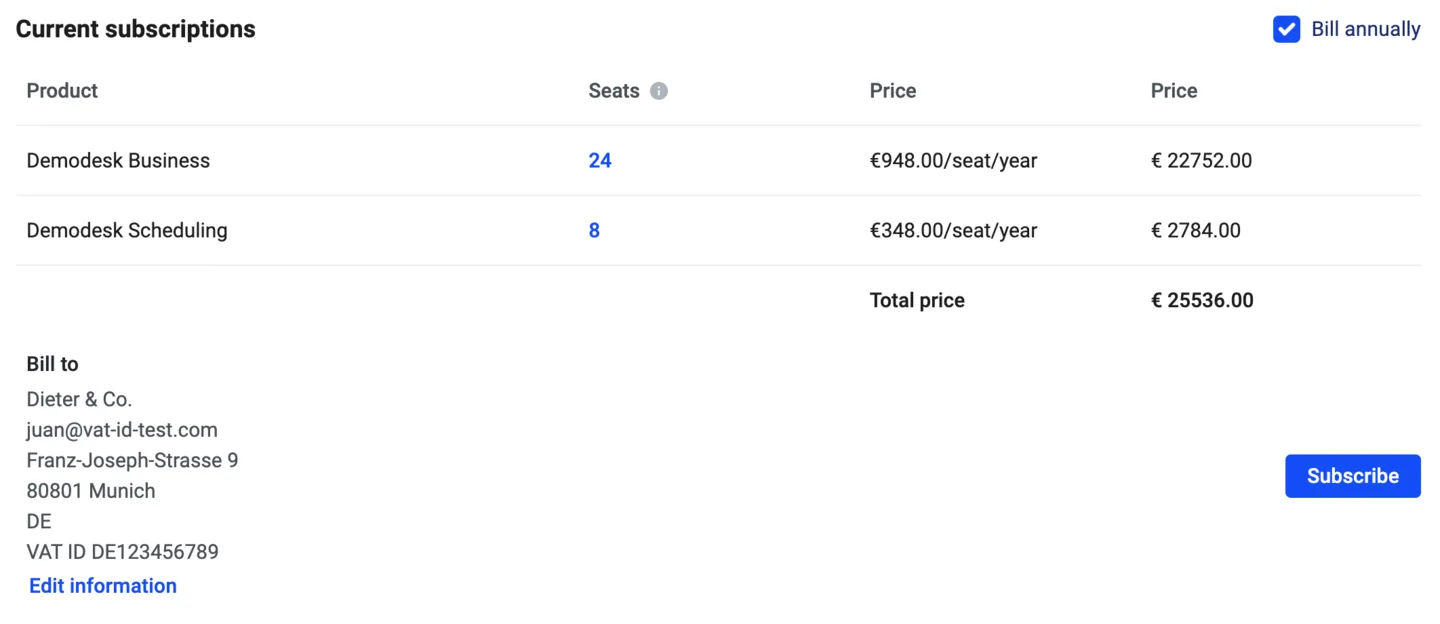
How seats are billed
You pay per seat, and the price depends on the seat type each person has. Viewer seats are free. You do not have to buy seats before inviting someone: a nightly check compares the people in your workspace with the seats your subscription covers and adds the seats that are missing.
Seats are only lowered automatically on subscriptions billed every month, and only in the night before your next billing date. On every other billing interval the seat count stays as it is until you ask us to change it.
How to add seats
Invite the new teammate in Settings > Company > Teammates and pick their seat type. If that takes you above the seats your subscription covers, the extra seats are added with the nightly check and charged pro rata for the rest of the billing period, so you only pay for the days you use them.
Seats you add during an annual term are added to your existing subscription and end on the same date as it. They do not start a new 12 month term of their own.
How to remove seats and when your invoice changes
- Open Settings > Company > Teammates.
- In the person's row, click the delete icon next to their name.
- Type REMOVE and click Remove teammate. Meetings using Demodesk Meet with that person are cancelled, so hand them over first.
When the invoice goes down depends on your subscription:
- Subscriptions billed every month that you set up yourself: the seat count drops to the lower number on your next billing date, and the next invoice is the smaller one. Nothing is refunded for the current period, because it is already paid for.
- Annual and quarterly subscriptions, and plans set up with our team: the seat count renews at the same number unless an admin asks us to lower it before the renewal date. Removing a teammate never lowers the bill on these plans by itself. The freed seat is yours to give to someone else at no extra cost.
Note: Removing a user frees the seat right away. Only the billed quantity waits for the renewal.
How to change a seat type
- Open Settings > Company > Teammates.
- In the Seat type column, click the person's current seat type and pick the new one.
The bill follows the same two rules as above. A seat type you add is charged pro rata once it takes you above the seats you pay for, and a seat type nobody uses anymore is removed on the next billing date if your subscription is billed every month and you set it up yourself. Switching a seat type never deletes anything the person created.
Invoices
Click Open billing portal on the Billing page. The billing portal is where you find every invoice as a PDF, your current subscription and the card on file. Only admins can open it.
The seat count cannot be changed in the billing portal. It follows the teammates in Settings > Company > Teammates, so add or remove people there and the subscription follows.
Billing address and VAT ID
- Open Settings > Company > Billing.
- Next to Bill to, click Edit information, or Add billing information if you have not entered any yet.
- Fill in Company Name, Billing Email, Country, Billing Address and, if you have one, your VAT ID.
- Click Save.
The country you pick drives invoicing and VAT, so please keep it correct. A valid EU VAT ID is stored with your customer record and shown on your invoices.
Payment methods
Demodesk subscriptions are paid by card. When you subscribe you are forwarded to our payment provider, and you can replace the card later in the billing portal.
Bank transfer and SEPA direct debit are not available as self-serve options. If you need one of them, click Contact us on the Billing page and tell us your billing country and the method you need, and we will check what we can set up for your account.
AI Agent credits
AI Compute Credits for AI Agents are prepaid and are not part of your subscription, so they are not shown on the Billing page. Company admins add credits and turn on auto top-up in Settings > Company > Agents.
Free trial
A Demodesk trial runs for 14 days and up to 20 people can use the workspace during that time. Invite 2 teammates while the trial is running and it is extended by one more week automatically.
When the trial ends you see Your trial has expired and the workspace stays locked until you subscribe. Your meetings and recordings are still there once you do.
How to cancel your subscription
- Open Settings > Company > Billing.
- Click Cancel subscription at the bottom of the page.
- Pick a reason, add optional feedback and click Confirm cancellation.
Your subscription stays active until the end of the period you already paid for, and you are not charged again. The Billing page then shows the end date. Changed your mind before that date? Click Changed your mind? Reactivate on the Billing page and the subscription continues as before.
If your plan was set up with our team, the Cancel subscription button is not shown. Use Contact us on the Billing page or write to support@demodesk.com and we will go through the notice period in your contract with you.
What happens to your recordings and data
Cancelling does not delete your recordings by itself. How long they are kept is decided by Retain recordings for in Settings > Company > Recordings and AI, exactly as before. That setting removes the video and audio of a recording after the period you picked. Transcripts, summaries and the other content are always kept, and a bookmarked recording is kept as well.
Access is a different matter. Once the subscription has ended, access to your workspace ends. People who sign in see Subscription Ended and can resubscribe from there with Resubscribe. Download the recordings, transcripts and invoices you want to keep before the end date.
Still have a question
Related articles
Still need a hand?
Our support team answers in the app chat, or at support@demodesk.com.